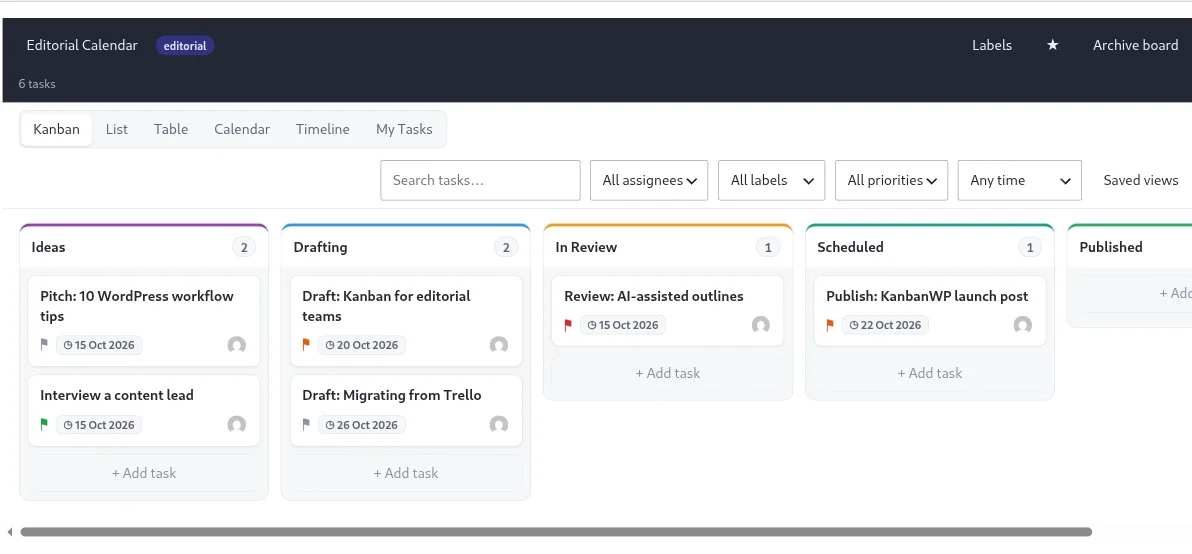
A WordPress client portal gives each client one page to check instead of waiting for status emails. KanbanWP builds that page from a kanban board. You place the board on a page of your site, add the client as a board member, and the client sees what is planned, in progress, in review and done. This page explains what the portal shows, which board role to give a client, and how it compares with dedicated client portal plugins.
What is a client portal?
A client portal is a private, logged-in area where a client sees information about their own work. Portal plugins for WordPress usually focus on one of three jobs:
- Sharing private files and pages with each client.
- Sending quotes and invoices, and taking payment.
- Showing project status and the conversation around it.
KanbanWP covers the third job. The client sees the same cards your team works from, so the portal shows the status your team last set. KanbanWP does not store client files for download, send invoices or take payments.
How the KanbanWP client portal works
The portal is a shortcode and a block that put a board on any page or post.
- Embed the board. Add
[kanbanwp_board id="12"]to a page, using your board’s ID, or add the KanbanWP board block and pick the board. See embedding boards. - Create the client’s account. The client needs a WordPress user account. The Subscriber role is enough, because WordPress gives Subscribers little more than access to their own profile. The KanbanWP admin screens need a permission that only Administrators get when the plugin is activated, so a Subscriber never sees them.
- Add the client to the board. Open the board, choose Manage members, and add the client by user ID or email with the Client role. The next section explains the roles.
- Send the page address. The board opens on the Kanban view. The client can switch to the other views with the tabs above the board.
What a visitor sees depends on who they are:
- A logged-in board member sees the board. If their role cannot edit, the board is read-only.
- A logged-out visitor sees “Please log in to view this board” with a login link that returns them to the page.
- A logged-in user who is not a member sees “You do not have access to this board.”
Which board role to give a client
KanbanWP checks four board roles. This table shows what each role allows in the plugin’s permission rules:
| Board role | View | Comment | Edit tasks | Manage board | Sees internal items |
|---|---|---|---|---|---|
| Admin | Yes | Yes | Yes | Yes | Yes |
| Member | Yes | Yes | Yes | No | Yes |
| Viewer | Yes | No | No | No | No |
| Client | Yes | Yes | No | No | No |
Add clients with the Client role. A client sees the board, opens tasks and reads every comment that is not internal. They can post comments and edit or delete their own, but they cannot create, edit or move tasks. Use Viewer for someone who should only read.
Version 1.0.0 could not assign the Client role. Its members menu offered Admin, Editor, Commenter and Viewer, and saved both Editor and Commenter as Member, which version 1.0.1 fixes. A client you added as a Commenter in 1.0.0 has the Member role, so they can edit tasks and see internal items. Change them to Client after you update. Permissions and roles covers each role in detail.
Keep internal work off the client’s screen
Two checkboxes let you keep private notes on the same board the client follows:
- Internal only task. Tick it in the task panel and the task is hidden from viewers and clients.
- Internal comment. Tick Internal under the comment box before you post. Only board admins and members see the comment, even on a task the client can see.
Use internal comments for pricing discussions, opinions about feedback and notes to a colleague. Everything else on a visible task is visible to the client, including the description, labels, due date and non-internal comments. See comments and internal notes.
Share a board without a login
For a stakeholder who should not get an account, KanbanWP can create a public link. The feature is off by default. You turn it on with Allow boards to be shared via public links in the General settings.
A public link opens a read-only snapshot of the board through a secret 32-character token. The snapshot contains the board name and description, the stages, and each task’s title, description, priority, due date and labels. It also lists members by display name and role, never by email.
The snapshot leaves out internal-only tasks, comments, assignees, checklists, attachments and custom fields. The page asks search engines not to index it. In version 1.0.1 you create and revoke tokens through the REST API, because the board screen has no button for it yet. Creating a new token replaces the old one, so earlier links stop working.
A client board setup
The Client template creates five stages and three labels:
- Stages: Backlog, In Progress, In Review, Approved and Done.
- Labels: Feedback, Revision and Approved.
Write each deliverable as a card with a due date, and keep your planning tasks internal. Cards in In Review wait for the client’s decision. When too many cards wait there, a WIP (work in progress) limit makes that visible. KanbanWP has a Default WIP limit setting that applies to the stages of new boards. A stage over its limit shows a warning but still accepts cards. See WIP limits and all kanban board templates.
To rename a stage, add one or change its WIP limit, click the ⋯ button in the stage header on the board. See stages.
KanbanWP compared with a WordPress client portal plugin
Dedicated client portal plugins and KanbanWP solve different problems. This table compares KanbanWP with three plugins listed on WordPress.org, using each plugin’s own page as checked in October 2026:
| Plugin | What the client gets | Notes |
|---|---|---|
| KanbanWP | A live project board with stages, tasks, due dates and comments | Free. No client files, invoices or payments. |
| WP Customer Area | Private pages and private files assigned to each user | Free core, 10,000+ active installs. Conversations, projects and invoicing are sold as extensions. |
| Jetpack CRM | A portal where contacts view proposals, invoices and files | The portal is part of the free CRM. Paid plans start at $11 a month, billed yearly. |
| Constellation Client Portal | Private client pages with files and invoices | WooCommerce pay buttons and email notices are in the Pro version. |
If your clients mainly ask where the project stands, a board answers that question, because your team already updates the cards. If they need to download deliverables, accept quotes or pay invoices, use a portal or CRM plugin for that part. You can run one of those plugins next to KanbanWP. KanbanWP has no built-in connection to any of them.
Project management software with a client portal
Hosted project management tools also let clients in, but they usually count clients as users. For example, Basecamp’s pricing page says every person you add counts toward the plan’s user limit. As of October 2026, its free plan allows one project and up to five users. KanbanWP has no user limit, because it runs on your own WordPress site. To compare KanbanWP with a hosted board, read KanbanWP vs Trello.
Client updates written by AI
KanbanWP has an AI feature that drafts a friendly or professional client update from the board’s data, using your own API key. In version 1.0.1 it is available through the REST API, not as a button on the board. Read and edit the draft before you send it. See AI project management and the AI guide.
Next steps
- Download KanbanWP and embed one client board on a test page.
- Read how to deal with difficult clients for scripts and a weekly board routine.
- See kanban for project management for how your team runs the board behind the portal.
Frequently asked questions
What is a client portal?
A client portal is a private area where a client signs in to see their own project information, such as status, files or invoices. It replaces status emails and screenshots with one place the client can check.
Is KanbanWP a free WordPress client portal plugin?
KanbanWP is a free GPLv2 plugin. Its portal shows a board on a front-end page to logged-in members, and it does not handle files, invoices or payments for clients.
Do clients need a WordPress account?
For the embedded board, yes. The client logs in and must be a member of the board. For someone without an account, you can create a read-only public link that you can revoke.
Can clients comment on tasks?
Yes, from version 1.0.1. A user with the Client role sees a comment box on each task in the portal and can edit or delete their own comments. In version 1.0.0, clients saw no comment box.
Can a client see my internal notes?
Not if you add them with the Client or Viewer role. Tasks marked Internal only and comments marked Internal are shown only to board admins and members.