A kanban board template gives you a working set of columns and labels on day one, so you can put real work on the board before you design anything. KanbanWP includes five templates in the free plugin: Editorial, Client, Sales, Bugs and Blank. This page lists exactly what each template creates, explains how templates work in KanbanWP, and shows how to choose kanban board columns when no template fits.
If you are new to kanban, start with what is a kanban board.
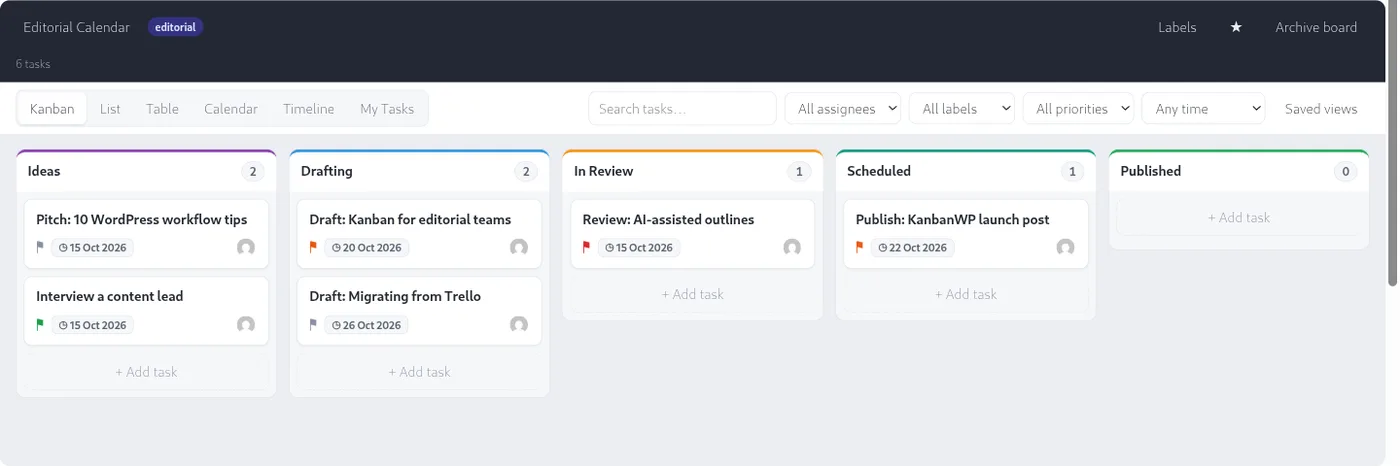
The five kanban board templates at a glance
| Template | Columns (stages) | Starter labels |
|---|---|---|
| Editorial | Ideas, Drafting, In Review, Scheduled, Published | Article, Video, Newsletter |
| Client | Backlog, In Progress, In Review, Approved, Done | Feedback, Revision, Approved |
| Sales | Lead, Contacted, Proposal, Negotiation, Won, Lost | Hot, Warm, Cold |
| Bugs | New, Triaged, In Progress, In QA, Resolved | Critical, Minor, Enhancement |
| Blank | To Do, Doing, Done | High Priority, Low Priority |
Each stage and label comes with its own color.
Editorial kanban template
The Editorial template is for planning and publishing content.
- Stages: Ideas, Drafting, In Review, Scheduled, Published.
- Labels: Article, Video, Newsletter.
Tasks can link to WordPress posts and pages, so a card can point to the draft it tracks. If cards pile up in In Review, that stage is the first place to set a WIP limit. See the editorial calendar setup.
Client kanban template
The Client template is for work that a client reviews and approves.
- Stages: Backlog, In Progress, In Review, Approved, Done.
- Labels: Feedback, Revision, Approved.
Approved is a separate stage from Done, so you can see what the client has signed off but you have not yet delivered. Clients can follow progress through the client portal.
Sales pipeline kanban template
The Sales template is for tracking leads and deals.
- Stages: Lead, Contacted, Proposal, Negotiation, Won, Lost.
- Labels: Hot, Warm, Cold.
The board ends in two stages, Won and Lost, because a deal can finish either way. See the sales pipeline guide.
Bug tracking kanban template
The Bugs template is for triage and fixing issues.
- Stages: New, Triaged, In Progress, In QA, Resolved.
- Labels: Critical, Minor, Enhancement.
The Triaged stage holds bugs that someone has checked and accepted, which keeps unchecked reports in New.
Blank kanban template
The Blank template is a minimal start for anything else.
- Stages: To Do, Doing, Done.
- Labels: High Priority, Low Priority.
For general team work, see kanban for project management.
Which kanban template to pick
- You publish content such as articles, videos or newsletters: Editorial.
- A client approves your work before it ships: Client.
- You track leads or deals that end in a win or a loss: Sales.
- You fix reported problems that need checking first: Bugs.
- None of these fit, or you want to start small: Blank, or design your own columns with the guidance below.
If two templates fit, pick the one whose last stages match how your work finishes. Sales ends in Won and Lost, while Client separates Approved from Done.
How templates work in KanbanWP
- Install KanbanWP.
- Go to KanbanWP > Boards. In the Create a board form, enter a board name and pick a template in the Template dropdown.
- Create the board. It opens with the template’s stages and labels.
A few details are useful to know:
- Default template. The Default board template setting in KanbanWP > Settings is Blank until you change it. It applies when a board is created without a template, for example through the REST API. The Create a board form uses the template you pick in its dropdown.
- Default WIP limit. The Default WIP limit setting applies to every stage a template creates. It is 0, meaning no limit, until you change it. See WIP limits.
- Labels are yours to change. Add, recolor or remove labels from the Labels button on the board. See labels.
- Stages change through the REST API. The board screen does not have controls to add, rename or reorder stages. The REST API has endpoints for all three.
- The template name stays visible. The boards list shows which template each board started from.
Step by step: your first board and the templates reference.
How to choose kanban board columns
When no template matches your work, design the columns yourself. Kanban columns describe states that a piece of work passes through, from the moment it is accepted to the moment it is finished. Use these rules:
- Map what you do now. Kanban University’s first principle is “start with what you do now,” according to its guide to the Kanban Method. Draw the steps your work really takes, not the process you wish you had.
- Mark where work starts and ends. The same guide says a kanban system needs “at least one clear commitment and delivery point.” The commitment point is usually the move out of a backlog column, and the delivery point is the last column.
- Name states, not actions. “In Review” says where a card is. “Review it” says what to do.
- Add a waiting column where work stalls. A buffer column such as “Ready for review” or “Waiting on client” shows a delay that would otherwise hide inside an active column. A training deck on digital.gov shows a publications board with a “Ready for Graphics” column for this reason.
- Keep the count small. Three to seven columns is enough for most teams. Each extra column is another place for work to wait.
- Do not make a column per person. Use assignees or swimlanes for people, and keep columns for the process.
- Use labels for type, not columns. Article, Video and Newsletter are labels in the Editorial template because they move through the same steps.
Example: kanban board columns for a design studio
A small design studio might use these columns:
- Requested, where new briefs arrive, with no limit.
- In design, the commitment point, limited to 3.
- Waiting on client, a buffer stage with no limit.
- Revisions, limited to 2.
- Delivered, the delivery point.
The Client template is close to this. If you want these exact columns without the REST API, import a CSV with a stage column. The import creates a new board and adds each stage the first time a row uses it, in that order. See exporting and importing.
Make your own kanban template
Once a board has the columns, limits and labels you like, use it as your template. Duplicating a board copies its stages with their WIP limits, its labels and its tasks. Keep one board with only a few sample tasks as a master copy, and duplicate it for each new project.
AI can also design a board. The Generate board feature creates a board with stages and starter tasks from a short description, using your own AI provider key. In version 1.0.1 it runs through the REST API, not a button on the board. See AI project management.
After you create a board
- Watch which stage fills up first, and give it a lower limit than the others through the REST API.
- Add custom fields for details your process needs, such as a deal value or a client name.
- Read the benefits of kanban for what to expect in the first weeks, and these kanban examples for boards outside software.
- Compare other tools in best free kanban board software in 2027.
Download KanbanWP and create your first board from a template.
Frequently asked questions
What is a kanban board template?
A kanban board template is a ready-made set of columns and labels for one type of work. You start tracking work right away instead of designing a board from scratch.
Are the KanbanWP kanban board templates free?
Yes. All five templates are part of the free plugin, with no license key. You pick one in the Template dropdown when you create a board.
What columns should a kanban board have?
Start with one column for each state your work passes through, usually three to seven. Include a first column for work not yet started, a last column for finished work, and a waiting column wherever work often stalls.
Can I change a template's columns after I create a board?
You can add, recolor and remove labels on the board screen. Stages are changed through the REST API, because the board screen does not have controls for them yet.
Can I make my own kanban template?
Yes. Set up a board the way you want and duplicate it for each new project. A duplicate copies the stages, WIP limits, labels and tasks of the original.