Labels are short colored tags you put on tasks to mark a type, a topic or a status that does not fit a stage. Labels belong to a single board, so each board has its own set.
Starter labels
Boards created from a template come with labels already in place. For example the Sales template adds Hot, Warm and Cold, and the Bugs template adds Critical, Minor and Enhancement. See Templates for each list.
Manage labels
- Open the board and click Labels in the header. This button is shown to people who can edit the board.
- To add one, type a Label name, choose a Color and click Create.
- Existing labels are listed in the same popover. If there are none it says “No labels yet.”
A label created without a color, for example by AI or a CSV import, gets gray. Labels imported from Trello keep their Trello colors.
Put a label on a task
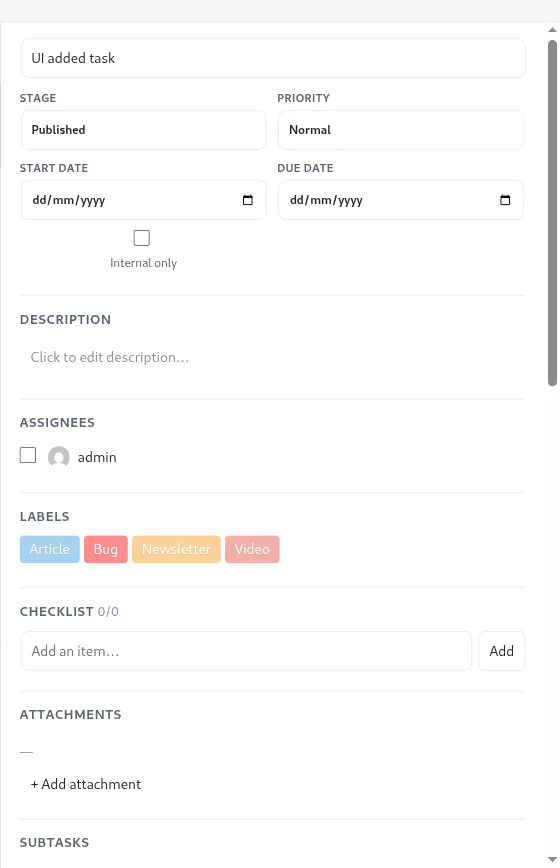
Open the task by clicking its card. In the labels section of the task panel, each label on the board shows as a colored chip. Click a chip to turn it on or off for that task. A label that is on is filled with its color and shows a check mark. A label that is off is a white chip with a colored border. Labels appear on the card as small chips above the title and as a column in the Table view. In versions before 1.0.3 they did not show in either place, although the chips in the task panel worked. Update to 1.0.3 or later to see them.
Filter by label
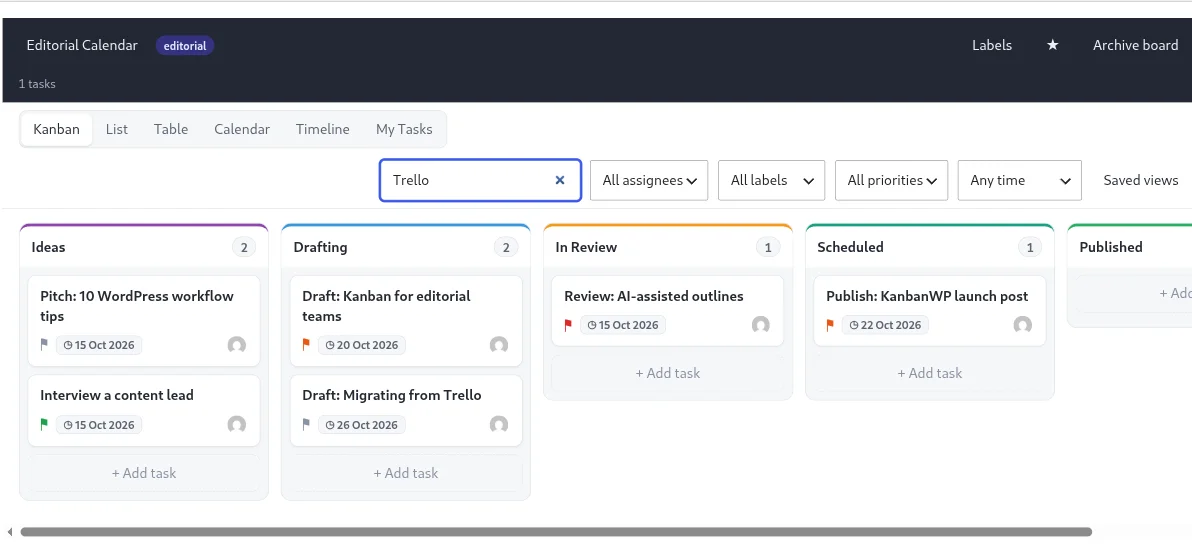
The Label dropdown in the filter bar lists every label on the board, plus All labels. Pick one and every view shows only tasks that carry it. Combine it with the other filters, for example Label = Critical and Due = Overdue. Save the combination as a view if you use it often. See Saved views.
Tips
- Keep the set small. Five to eight labels is easier to scan than twenty.
- Use labels for what a task is, and stages for where it is in the process.
- Any color works. KanbanWP writes the label name in dark or white text, whichever is easier to read on the label’s color.
- Duplicating a board copies its labels and keeps them attached to the copied tasks.