For editorial teams, a card and the post it describes should stay connected. KanbanWP links a task to any WordPress post, page or other post type, and the link works in both directions.
How the link is stored
The link lives in a post meta field called _kanbanwp_task_id on the post, and the task keeps the post ID in its own record. A task links to one post at a time. Linking a task to a new post replaces the earlier link. To link a post, you need edit rights on that post.
When you delete a linked task, or the board it is on, the post is freed, so you can link it to another task or import it again.
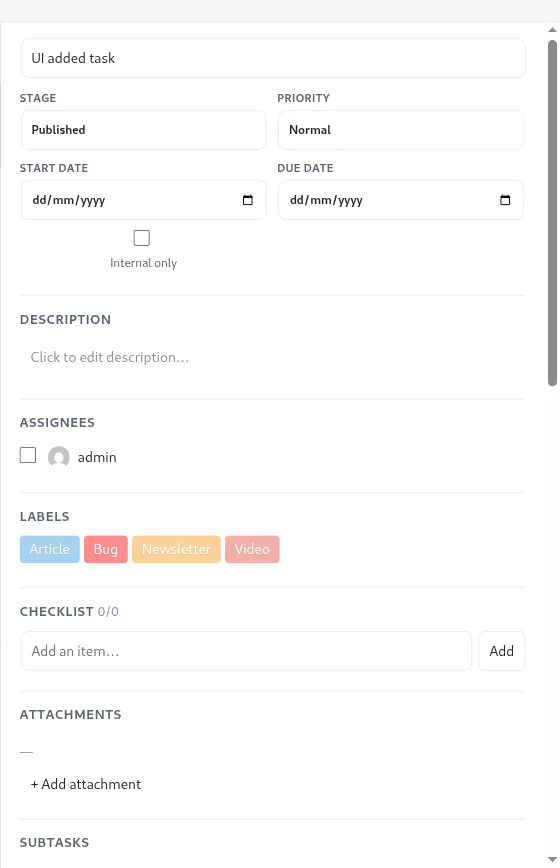
Linked tasks show a small link marker on the card, and the task modal has a Linked post section with the post title as a link to the editor.
Create a task from the block editor
When you edit a post in the block editor, KanbanWP adds a sidebar panel named KanbanWP. The panel loads only in the post editor, not in the Site Editor, the Widgets screen or the Customizer.
- Open a post or page in the block editor.
- Open the KanbanWP panel from the editor sidebar.
- Choose a Board. Only boards where you can edit are listed.
- Click Create task from post.
The new task is linked to the post and placed in the board’s first stage. Once a post is linked, the panel shows Linked task: with the task title and an Open board link. If the post already has a task, a second one is not created.
The Open board link goes to the board screen in wp-admin, which needs the kanbanwp_manage capability. For other users the link is hidden, unless a developer points it at a page that shows the board with the kanbanwp_board_url_for_user filter.
Import existing drafts
If you already have drafts waiting, use the Import Drafts screen.
- Go to KanbanWP > Import Drafts. This needs the KanbanWP manage permission.
- Pick the Target board and, if you want, the Target stage. Without a stage, the first stage is used.
- The table lists posts and pages with a status of draft or pending that are not linked yet, with their title, type, status and modified date.
- Click Import as task on the rows you want.
Each import creates one task and links it to the post. Tasks created from the editor panel or the Import Drafts screen send notifications and webhooks like any new task. Developers can change which post types are listed with the kanbanwp_import_drafts_post_types filter. By default, it is posts and pages.
Keep stages and post status in sync
KanbanWP can mirror stages to post statuses. When a mapping exists for a board, moving a card to a mapped stage updates the linked post’s status, and changing the post’s status moves the card to the matching stage. A built-in guard stops the two from triggering each other in a loop. Stages that are not in the map do nothing.
Map a stage to a post status
- On the Kanban view, click the ⋯ button in the stage header. Only board admins see the setting.
- Under “When a card enters this stage, set the linked post to:”, pick No change, Draft, Pending review, Published or Private.
The choice saves as soon as you pick it. Repeat for each stage you want to map.
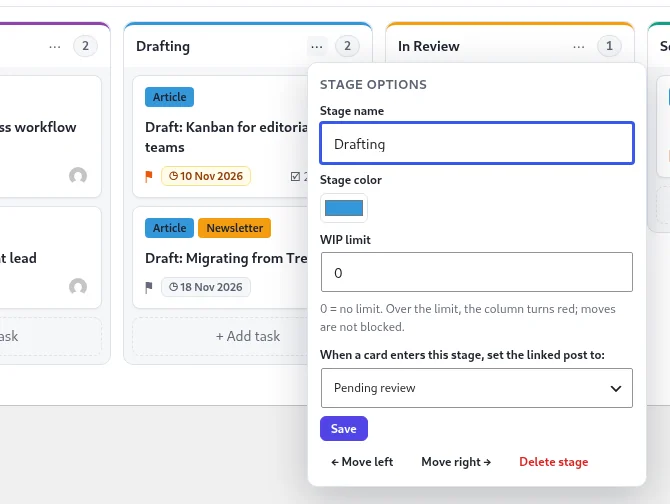
The mapping is stored in the board’s settings under the key stage_post_sync, as a list of stage IDs and post statuses (for example, a Published stage mapped to publish). Developers can also set it by updating the board’s settings through the REST API, which accepts other statuses such as future. A stage mapped to a status that the select does not list shows No change in the select.
Who can change the post
Moving a card into a mapped stage changes the post only if the person moving it may make that change in WordPress:
- Every status change needs edit rights on the post.
- Published and Private also need the right to publish that type of post.
If the person lacks the right, the card still moves and the post stays as it was. Moves made by MCP agents, by cron or by recurring tasks never change the post.
When a post’s status change moves a card, the move is logged in the board’s activity feed, sends notifications and webhooks, and runs the stage’s rules, the same as a move on the board.
Duplicated boards
A duplicated board keeps the map, and the copy’s mapped stages point at the copy’s own stages. The copy has no linked posts, so link its cards to posts again.
Developer endpoints
The REST API includes routes to link a post to a task, unlink it, create a draft post from a task, look up the post for a task, look up the task for a post, and create a task from a post. They check that you can edit the board and, for post routes, edit the post. The read routes don’t return internal tasks to clients and viewers. See the REST API.
Related
Frequently asked questions
How do I sync a kanban stage with a WordPress post status?
Click the ⋯ button in the stage header and pick a status under "When a card enters this stage, set the linked post to:". The choices are No change, Draft, Pending review, Published and Private.
Does moving a card publish the linked post?
Only when the stage is mapped to Published and the person moving the card may publish that type of post in WordPress. Without that right, the card moves and the post stays as it was.
Can I map a stage to Scheduled?
Not from the stage options. Developers can map a stage to the future status by updating the board's settings through the REST API.
Can one post be linked to several tasks?
No. A task links to one post at a time, and the block editor panel does not create a second task for a post that already has one.
What happens to the post when I delete its task?
The post is freed, so you can link it to another task or import it again.