Large pieces of work are easier to track when they are split up. KanbanWP offers subtasks for breaking work down and a “Blocked by” list for recording order.
Subtasks
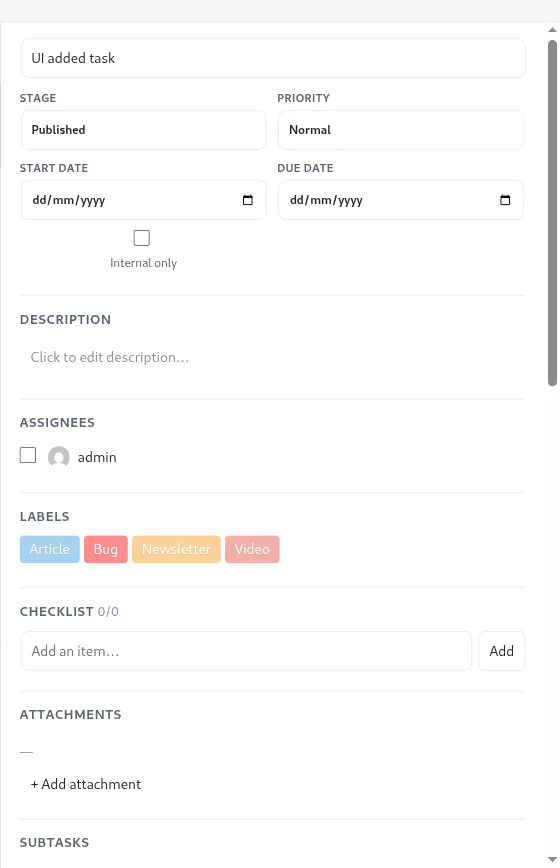
A subtask is a full task whose parent is another task. It has its own title, stage, assignees, due date and comments.
Add a subtask
- Open the parent task.
- Under Subtasks, type a title in the “Add subtask…” box.
- Select Add, or press Enter.
The subtask is created in the same stage as the parent. It appears in the parent’s list, and the parent card shows a subtask count. Select a subtask in the list to open it.
Things to know
- Subtasks are listed under their parent in the panel. Archived subtasks show a box icon.
- Deleting a parent also deletes its subtasks. See deleting a task.
- Completing subtasks doesn’t automatically move the parent. You decide when the parent is done.
- A subtask of an internal task is internal too. Making a task internal also makes its existing subtasks internal, and a subtask stays internal while its parent is. See internal-only tasks.
If you only need simple steps, a checklist is lighter than subtasks.
Dependencies
Dependencies record that one task is blocked by others.
Mark a task as blocked
- Open the task that is waiting.
- Under Blocked by, enter the number of the blocking task in “Add task ID…”. The number is shown in the panel header of that task as
#plus digits. - Select Add, or press Enter.
The blocking tasks appear as links you can open. Select the × beside one to remove it. The card shows a count of its blockers. A blocking task must be on the same board. Clients and viewers don’t see internal tasks in the list.
What dependencies do not do
Dependencies are informational. KanbanWP doesn’t stop you moving a blocked task, and it doesn’t move a task when its blocker finishes. Use the list as a visible reminder and review blocked tasks in your regular check-ins.