KanbanWP includes AI helpers for planning and writing work, and an MCP server so outside AI agents can work with your boards. Both are optional. The AI helpers use your own API key and your own provider account, so there is no extra billing from KanbanWP.
Use AI on the board
Once AI is set up, the board header shows an ✨ AI button. It opens a menu with two tools.
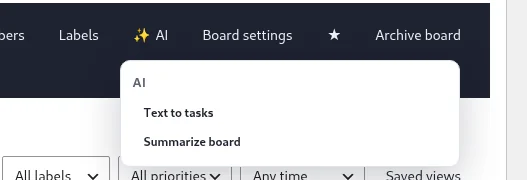
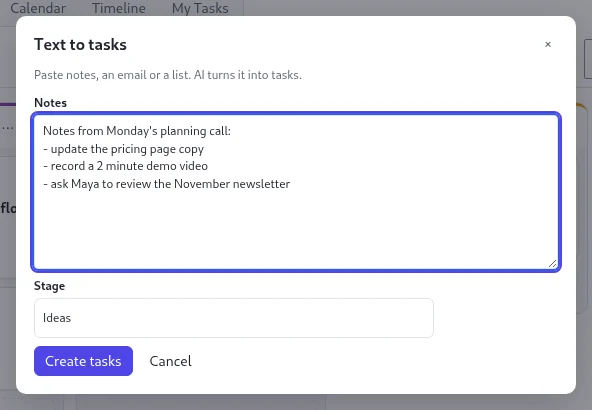
- Text to tasks opens a dialog where you paste notes, an email or a list into Notes and pick a Stage. Click Create tasks, and the AI turns the text into tasks in that stage. A message such as “4 tasks created.” confirms the result. One request creates at most 50 tasks.
- Summarize board opens a dialog with a short standup summary of the board.
The task panel has two more buttons under the task title:
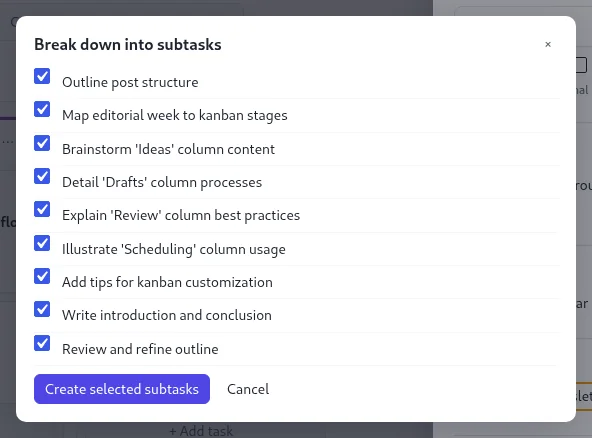
- ✨ Break down into subtasks lists suggested subtasks with checkboxes. Untick the ones you don’t want and click Create selected subtasks. The subtasks are created in the same stage as the parent task.
- ✨ Summarize task opens a dialog with a summary of the task.
Who sees the AI buttons
The buttons show when all three of these are true:
- an AI provider and key are set up in the settings,
- one of the user’s WordPress roles is ticked under the allowed AI roles, or the user is a KanbanWP administrator,
- the user can edit the board.
Viewers and clients can’t edit a board, so they never see the buttons. See Usage and limits for the allowed roles and the monthly token cap.
All AI features
Each feature is a separate request to your chosen model, with a fixed instruction built into the plugin plus any preferences you add. Four features have buttons on the board. The rest are available through the REST API.
| Feature | What it produces | Where |
|---|---|---|
| Text to tasks | Turns pasted notes into a list of tasks with titles, descriptions, priorities, labels and due offsets. | Board header and REST API |
| Task breakdown | Splits one task into subtasks. | Task panel and REST API |
| Task summary | Summarizes a single task. | Task panel and REST API |
| Board summary: daily standup | A standup summary for a board. | Board header and REST API |
| Board summary: weekly | A weekly progress report for a board. | REST API |
| Post outline | Writes a blog post outline for a task. | REST API |
| Post draft | Writes a full post draft for a task. | REST API |
| Post SEO | Suggests an SEO title, meta description, excerpt and focus keywords. | REST API |
| Generate board | Designs a whole board, with stages and starter tasks, from a short description. | REST API |
| Client update: friendly and professional | A progress update based only on the board’s data. | REST API |
| Command | Runs short instructions such as creating, moving or assigning a task, and setting priority or due date. | REST API |
The REST endpoints are under kanbanwp/v1/ai/ and require a signed-in user with edit access to the board.
The post outline, post draft and post SEO features work from the WordPress post linked to the task. They use that post only if you can read it and it has no password. Otherwise they use the task’s title and description.
What stays under your control
- Your key, your provider. You choose OpenAI, Anthropic, Google Gemini or any OpenAI-compatible service, and the key is stored on your site only.
- Who can use it. Only the WordPress roles you tick, plus KanbanWP admins, can run AI features.
- How much it can cost. A monthly token cap applies per user.
- What it did. Every call is logged with the user, board, feature, provider, model and token counts.
- How it writes. You can add tone, language and style preferences globally or for each feature.
The AI creates content and tasks only when someone triggers a feature. Nothing runs on a schedule in the background.
Use cases
For how these features fit planning work, including sprint planning and board generation, see AI project management. To compare with other tools, read best AI task managers in 2027.
Get started
- Add a provider and key: see Providers and keys.
- Set a monthly cap and the allowed roles: see Usage and limits.
- Optionally let external agents work with your boards: see MCP.
Privacy note
When you run a feature, the relevant task or board text is sent to the provider you configured. Check that provider’s terms before using it with sensitive content. Internal tasks and comments are not sent for a user who can’t see them, and AI summaries are not saved in the activity log. If you do not add a key, no AI request is ever made, and the features return a “not configured” error.
If the saved key can no longer be decrypted, for example after a site move or a change of the WordPress security keys, KanbanWP admins see a notice on KanbanWP screens asking them to enter the key again.
Related
Frequently asked questions
Does KanbanWP have AI buttons on the board?
Yes. The board header has an AI menu with Text to tasks and Summarize board, and the task panel has Break down into subtasks and Summarize task. The other AI features are available through the REST API.
Why can't I see the AI button?
The AI buttons show only when AI is set up in the settings, your role is one of the allowed AI roles or you are a KanbanWP administrator, and you can edit the board. Viewers and clients do not see them.
How many tasks can Text to tasks create at once?
Up to 50 tasks per request. The tasks go into the stage you pick in the dialog.
Does AI break down a task automatically?
No. Break down into subtasks shows suggestions with checkboxes, and only the subtasks you tick are created when you click Create selected subtasks.
Does KanbanWP charge for AI?
No. The AI features use your own API key and your own provider account, so there is no extra billing from KanbanWP.