This page covers the everyday actions: adding a task, moving it and opening it.
Create a task
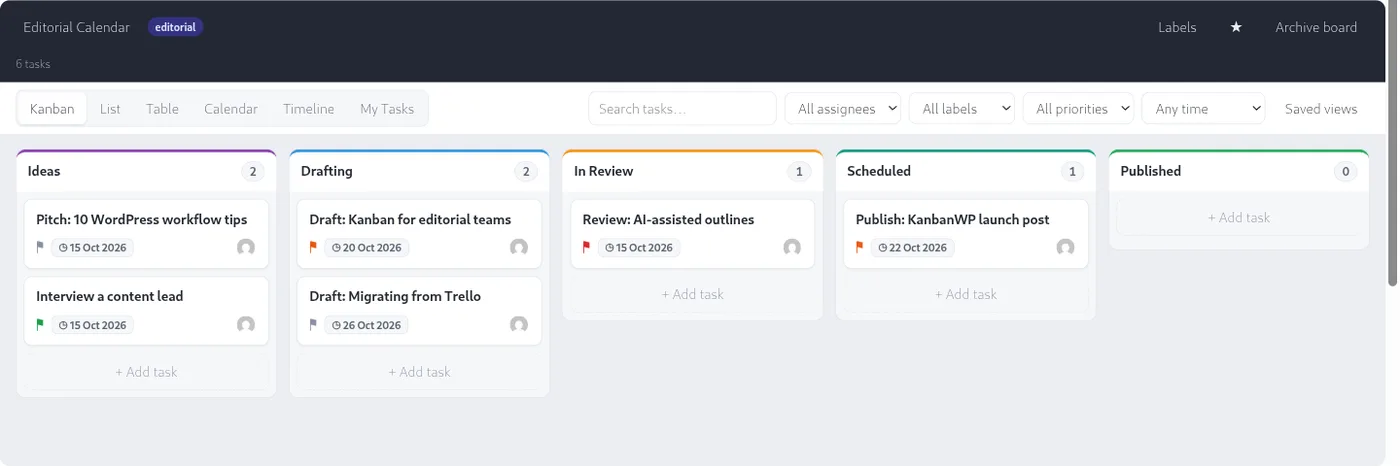
- Open a board in the Kanban view.
- At the bottom of the stage where the task belongs, select Add task.
- Type a title in the Task title box.
- Select Add, or press Enter. Select Cancel to close the box without saving.
The new task is created in that stage and added to the end of it. A title is required. You can fill in everything else later in the detail panel.
You need the admin or member role on the board to create tasks. Viewers and clients can’t.
Move a task
Drag a card to another stage, or to a new position within the same stage. The card lands where you drop it and keeps that place. Letting go of a card does not open the task panel. You can also open the task and change Stage in the detail panel. Moving a task notifies the people involved with it (see notifications).
Move a card with the keyboard
- Tab to a card and press Space to lift it. The board announces “Task lifted” to screen readers.
- Press the left and right arrow keys to move the card to another stage, and the up and down arrow keys to move it within the stage. Screen readers announce the stage the card moves to and its position in the stage.
- Press Enter or Space to drop the card, or Escape to cancel the move. The board announces “Task dropped.” or “Drag cancelled.”
Pressing Enter on a card that isn’t lifted opens the task.
Stages can have a WIP limit. A stage that has more tasks than its limit is marked as over the limit. See WIP limits.
Open a task
Select a card, or press Enter on it, to open the detail panel. Every field on the task is edited there. The panel header shows the task number, an Internal badge when the task is internal only, and buttons to watch, archive or delete the task.
While the panel is open, keyboard focus stays inside it. Press Escape to close it. Escape in a text field or dropdown doesn’t close the panel. When the panel closes, focus goes back to the card or row you opened it from.
Watch a task
Select Watch in the panel header to follow a task you aren’t assigned to. Watchers receive notifications for that task along with assignees, the person who created it and anyone who has commented.
Share a link to a task
The panel includes a Shareable link field with a Copy button. The link opens the board with that task already open, on the page where you are viewing the board. On a board embedded in a page of your site, the link points to that page, not to wp-admin. People still need access to the board to see it.
Archive a task
Select Archive task in the panel header. An archived task disappears from the board but isn’t deleted. Open it again and select Unarchive task to bring it back. KanbanWP never archives tasks on its own. See deleting a task for permanent removal.
Change how you see tasks
The same tasks can be shown as a board, list, table, calendar, timeline or a My Tasks view. Switch with the tabs above the board. See views.