Swimlanes cut the Kanban view into horizontal rows. Every row repeats the same stages, so you can see, for example, each team or each project on its own line.
How swimlanes behave
A swimlane is a short text value stored on a task. There is no list of lanes to maintain. The board builds its rows from the swimlane values that its tasks currently use, in alphabetical order. Tasks with no swimlane go in a row called “No swimlane”.
Swimlanes only change the Kanban view. The List, Table, Calendar, Timeline and My Tasks views ignore them.
Turn swimlanes on
Swimlanes are a per-board setting, and board admins turn them on from the board.
- Open the board and click Board settings in the board header.
- Tick Show swimlanes. The setting saves at once.
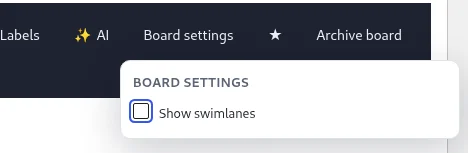
Untick the box to turn swimlanes off again. Developers can also set swimlanes to true or false in the board’s settings through the REST API.
Once the setting is on:
- the Kanban view shows one row per swimlane value, with the lane name at the left of each row,
- the task panel shows a Swimlane field,
- the + Add task button in a row creates a task in that row’s lane.
Assign a task to a swimlane
- Click a card to open the task panel.
- Type a name in the Swimlane field, or pick one from the suggestions that list the lanes already in use.
- The card moves to that row.
Use the same spelling each time. “Design” and “design team” create two different rows.
Move cards between lanes
Drag a card to another stage in a different row. Dropping it there changes both the stage and the swimlane in one move. You can also change the lane in the card’s Swimlane field.
Remove a lane
Clear the Swimlane field on every task in the lane. When no task uses the value, the row goes away. Tasks you archive do not count, so an archived task will not keep a row alive.
Tips
- Use a handful of lanes. Many rows make the board tall and hard to scan.
- Pair swimlanes with filters, for instance by assignee, to focus on one person’s rows.
- Duplicating a board keeps its swimlane setting and each task’s lane.