A WordPress editorial calendar shows what you plan to publish, who is writing it, and when each piece is due. KanbanWP is a free plugin that runs this plan as a kanban board inside your WordPress admin, with each card linked to the post it describes. This page explains how the posts integration and the stage-to-status sync work, gives a setup for a small content team, and compares KanbanWP with the WordPress calendar plugins built around post dates.
What is an editorial calendar?
An editorial calendar lists each planned piece of content with its topic, writer, due date and publish date. It also shows where each piece is in the editorial workflow, the steps a piece passes through from idea to published post.
WordPress already tracks part of this workflow. Every post has a post status, and the four that matter here are:
draft: an unfinished postpending: a post waiting for a user who can publish, such as an Editorfuture: a post scheduled for a later datepublish: a live post
WordPress has no calendar or board screen for these statuses, and it has no place for work that is not a post yet, such as an idea, a brief or a video script. Editorial calendar software fills that gap.
The Editorial board template
Create a board from KanbanWP’s Editorial template and you get five stages:
- Ideas
- Drafting
- In Review
- Scheduled
- Published
The template also adds three labels, Article, Video and Newsletter, so you can tell content types apart on the board. If you need a different set of stages, such as a separate Editing stage, click + Add stage at the right end of the board, then move the new stage into place with the ⋯ button in its header. See stages.
How cards and posts are linked
KanbanWP links a card to one WordPress post, page or other post type. The post stores the card’s ID in a post meta field, and the card stores the post’s ID. There are three ways to create a link.
From the block editor
When you edit a post in the block editor, KanbanWP adds a sidebar panel named KanbanWP. Choose one of the boards you can edit and click Create task from post. KanbanWP creates a card in the board’s first stage, using the post title as the card title and the excerpt, or the first 55 words of the post, as the description. Once a post is linked, the panel shows the linked task and an Open board link. A post can have only one card, so the panel does not create a second one.
From existing drafts
The Import Drafts screen in the KanbanWP admin menu lists posts and pages with the status draft or pending that are not linked yet. Pick a target board and stage, then import the drafts you want. Each import creates one linked card. This screen needs the plugin’s manage capability, which WordPress administrators have.
Through the REST API
The REST API has routes to link a post to a card, unlink it, look up the link from either side, and create a card from a post. A further route creates a draft post from a card, using the card title as the post title and the card description as the post content. If the card already has a post, that route returns the existing post instead of creating another. Details are in the WordPress posts integration guide.
Stage-to-status sync
A board can map its stages to post statuses. With a map in place, the sync runs in both directions:
- Moving a card to a mapped stage changes the linked post’s status.
- Changing the post’s status moves the card to the stage mapped to that status. This includes changes made in the editor, in Quick Edit, and by WordPress when a scheduled post goes live.
- Stages that are not in the map change nothing, and a built-in guard stops the two updates from triggering each other in a loop.
For the Editorial template, a map could look like this:
| Stage | Post status |
|---|---|
| Ideas | not mapped |
| Drafting | draft |
| In Review | pending |
| Scheduled | future |
| Published | publish |
The map is stored in the board’s settings under the key stage_post_sync, as stage IDs paired with status names. Version 1.0.1 has no settings screen for it, so you or a developer set it by updating the board’s settings through the REST API. The settings value you send replaces the board’s existing settings, so include any keys that are already there, such as swimlanes.
Keep three cautions in mind:
- Moving a card can publish a post. The sync does not check WordPress publishing rights. Anyone who can move cards on the board can publish a linked post by moving its card into the stage mapped to
publish. On that board, give the admin and member roles only to people who may publish posts. - Scheduling needs a future date. WordPress keeps a post as
futureonly when its date is at least one minute ahead, according to thewp_insert_post()source. Otherwise WordPress publishes it at once. Set the publish date in the editor before you move a card to a stage mapped tofuture. - Duplicated boards need a new map. A copy of a board keeps the old board’s settings, but its stages have new IDs. Set the map again on the copy.
An editorial workflow, week by week
This workflow suits a blog or a small content team, and it assumes the board has the stage-to-status map above:
- Add each idea as a card in Ideas, with the content type as a label.
- When you commit to an idea, set a due date for the draft and assign a writer. Put the brief in the card description and the steps in a checklist.
- When writing starts, link the card to a draft post. The REST API can create the draft from the card. Without code, create the draft in WordPress, click Create task from post in the sidebar, move the new card to Drafting and archive the idea card. From then on, the card moves with the post.
- The writer clicks Submit for Review in WordPress. The post becomes
pending, and the card moves to In Review. - The editor reviews the post and leaves feedback in card comments with @mentions.
- The editor sets a publish date and schedules the post. The card moves to Scheduled, and to Published when WordPress publishes the post.
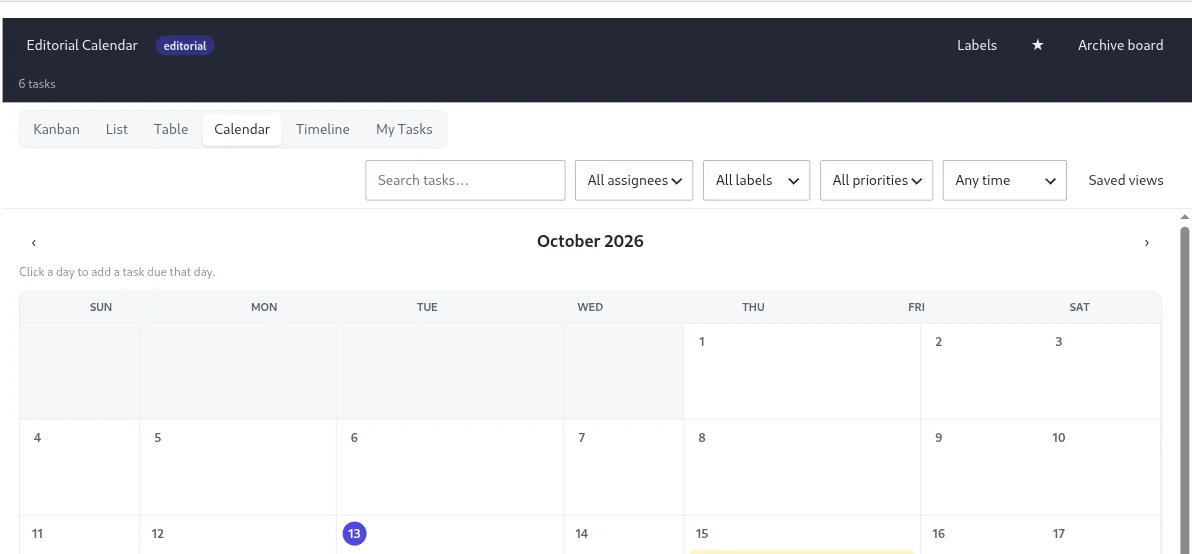
The calendar view shows cards on their due dates, or across the days from the start date to the due date. Use it to spot empty weeks and weeks with too many deadlines. A WIP limit on Drafting or In Review shows when too many pieces are open at once. The limit warns but does not block a move.
Other features for content teams
- Roles per board: admins manage the board, members edit, viewers only look, and clients view and comment. See permissions and roles.
- Internal comments: mark a comment internal so clients on the board do not see it.
- Notifications: in-app alerts, optional emails and daily or weekly digests.
- AI on your own key: REST API endpoints can outline a post, draft one from a card, and suggest an SEO title, meta description, excerpt and keywords. The board screen has no AI buttons in version 1.0.1. See AI.
How other WordPress editorial calendar plugins compare
Three editorial calendar plugins on WordPress.org have had updates in 2026, as checked in October 2026. All three show the posts themselves on a calendar by publish date. KanbanWP instead shows cards, which can exist before a post does and can track work that never becomes a post.
| Plugin | Active installs | What the free version does |
|---|---|---|
| Editorial Calendar | 20,000+ | Calendar of posts, drag a post to a new date, drawer of unscheduled drafts, quick edits |
| PublishPress Planner | 6,000+ | Content calendar, a content board with one column per post status, notifications, editorial comments |
| Nelio Content | 4,000+ | Editorial calendar, social media scheduling for up to three networks, content checks |
| KanbanWP | New plugin | Kanban board with its own stages, cards linked to posts, two-way stage and status sync |
Some differences matter when you choose:
- Publish dates. Editorial Calendar and PublishPress Planner let you drag a post to a new publish date on the calendar. KanbanWP’s calendar shows card due dates and does not change a post’s publish date.
- Paid features. PublishPress Planner keeps Slack notifications and reminder notifications for its Pro version. Nelio Content keeps its content board, editorial comments and tasks for its premium plan. KanbanWP has no paid version.
- Work outside posts. KanbanWP cards can hold ideas, videos and newsletters with checklists, assignees and attachments, whether or not a post exists.
Set it up
- Install KanbanWP.
- Create a board from the Editorial template.
- Add your writers and editors as board members with the right roles.
- Link existing drafts with Import Drafts, and new posts from the block editor sidebar.
- If you want the two-way sync, set the stage-to-status map through the REST API.
For more, read why kanban works, see the board templates, or browse the full feature list.
Frequently asked questions
What is an editorial calendar?
An editorial calendar is a plan of what content you will publish, who writes it, and when each piece is due and goes live. Teams keep it in a spreadsheet, a calendar plugin or a kanban board.
Does WordPress have a built-in editorial calendar?
No. WordPress has post statuses such as draft, pending review, scheduled and published, but no calendar or board screen. You add one with a plugin.
Can KanbanWP change a post's status when I move a card?
Yes, when a board has a stage-to-status map. Moving a card to a mapped stage updates the linked post, and changing the post's status moves the card. In version 1.0.1 you set the map through the REST API, which means sending a request from code because there is no settings screen for it.
Does KanbanWP show post publish dates on its calendar?
No. KanbanWP's calendar view shows cards by their due and start dates. Calendar plugins such as Editorial Calendar and PublishPress Planner show the posts themselves by publish date.